Advanced Portfolio Creation
Use the Portfolio Addon for Essential Grid to create a sophisticated multi-project portfolio.

Table of Contents
Advanced Portfolio Creation
The Portfolio Addon for Essential Grid is designed to help you create a portfolio optimized perfectly to showcase your collection of work, whatever the level of organization you require.
In this guide, we’ll walk through how to create a more advanced portfolio than we covered in the main portfolio addon guide, one that allows you to show off multiple projects, each with their own dedicated grid. And those per-project showcases will be made accessible through a central grid that acts like a menu, with a cover image and entry point per project.
The key technique we’ll be leveraging is nesting multiple grids.
The menu grid showcases your project covers.

Clicking a cover opens a project grid in a lightbox.

Each project grid contains the portfolio items for that project.
Let’s begin!
Note: If you want to skip doing the setup yourself, you can also just install the Pixel & Prism template then edit it to suit your needs.
Step 1: Create Your First Project
First, we’ll create one of the projects for your portfolio. You’ll repeat this process for any additional projects you have later.
Start by adding Portfolio Items for the first project you want to showcase. In other words, create posts via the Portfolio Item custom post type, a special portfolio-specific type of post that comes with the Portfolio Addon.

Make sure each post is assigned to the same Project. Project is a custom taxonomy built into the Portfolio addon, and used to group portfolio items together.

For example, pictured here is an example project named Pulse Track with seven Portfolio Item posts added to it.

Set the featured image for each post. This image is what will be shown for that portfolio item in the grid.

You can also give each post supporting info such as a description, when the project was run, or its duration. These fields are built into the addon and will display automatically in the grid as long as the skin used supports them.
Note: You can optionally use the Bulk Portfolio Item Creator to setup your project content.
Step 2: Build the Grid for That Project
Once your project’s content is setup, create a new empty grid from the Essential Grid dashboard.

Give the grid a Name and Alias.

Under the Source tab, set the Source to be based on Post, Pages, Custom Posts, and for Post Type select Portfolio Items.

In the Post Categories option, select the Project name you used earlier, e.g. “Pulse Track”. This will set the grid to display only the items for that project.

You can read more about selecting post categories here: Specify a Category or Tag.
Go to the Lightbox tab and make sure all the items in Shown Media Orders are unchecked, so that this grid will not open any lightbox when clicked. Since this grid will be shown in a lightbox itself, we don’t want it attempting to open any additional lightboxes.

Go to the Skins tab and choose an Item Skin that suits the content, such as the “Portfolio Item” skin that comes with the Pixel & Prism grid template.

Optional Advanced Styling: Wide First Image
As an optional extra, you may have the first image in your project grid appear wider than the others. This is achieved by first setting Grid Layout to Cobbles.

Then scroll down to the grid preview and click the gear icon.

In the Post Meta Editor, click the Item Settings tab, and from the Cobbles Element Size dropdown choose the layout dimensions you want, e.g. width 3, height 1.

Note: The first post in your grid should have an suitably wide image set as its featured image.
Step 3: Repeat for Other Projects
You can now repeat Step 1 and Step 2 for each project you want to showcase in your portfolio.
Create Portfolio Items for the next project just like before, assign them to a shared Project name, and create a corresponding grid filtered to show only that project.

Each project should end up with its own dedicated grid, showing only the items relevant to that body of work.
Step 4: Create Cover Posts
With your individual project grids complete, the next step is to create a collection of project-covers that will act as entry points, allowing visitors to easily view each project grid.
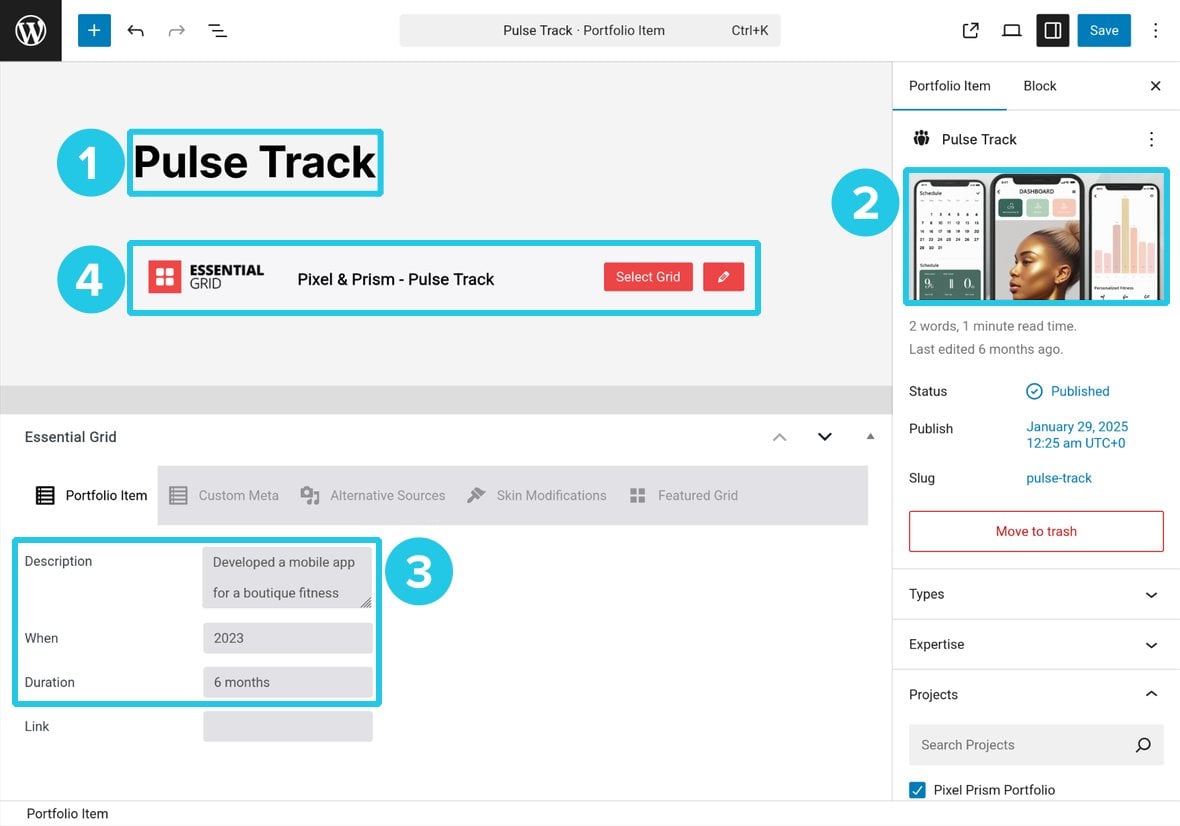
We’re going to achieve this by creating a “project” to house a collection of “cover-posts”, one per project grid, each with a cover-image, some information about the project, and the project grid embedded in the post content.
You’re doing this because in the next step, we’ll set up a menu grid that displays these cover-posts, and later publish it in a page. Clicking a project-cover will open the entire cover-post in a lightbox, showcasing the embedded project grid inside.
First, create a new Project term for your cover-posts, choosing a name that represents your entire body of work, e.g. ‘Pixel Prism Portfolio’. Then, for each project grid you created earlier, add one Portfolio Item cover-post to this project.

Give each cover-post a title that represents the project, and add a suitable cover-image as the featured image. The titles and images are what people will see in the project cover.
Optionally, add project information to the fields Description, When and Duration, just as you did when creating your regular portfolio items earlier.
Finally, use an Essential Grid block (or shortcode) to embed the grid you created for the project in Step 2.
Step 5: Build the Menu Grid
With your cover-posts ready, it’s time to build the menu grid that ties everything together.
Create a new Essential Grid and set it to show Portfolio Items assigned to your cover-post Project term, e.g. ‘Pixel Prism Portfolio’.

Go to the Lightbox tab and under Shown Media Orders check only Post Content. Ensure all other items are unchecked.

With this setting active, when someone clicks a project cover in the grid, they’ll be shown the associated cover-post content in the lightbox, i.e. the grid you embedded in the post at Step 4.
Apply a skin suitable for showcasing project covers, such as the “Portfolio Menu” skin that comes with the Pixel & Prism template.
Step 6: Publish Your Portfolio
Your grids are now all complete, and the only remaining step is to make your menu grid public.
Create a regular WordPress page and embed your menu grid on it. This will become your live portfolio page.

Visitors will land on your portfolio page, browse the menu grid for a project they like, click it, and immediately view the full project portfolio content in the lightbox.
This keeps the experience seamless, allowing viewers to stay on one page while exploring all projects.
Final Structure Recap

In this structure, we use a couple of layers of grid and post nesting to create a rich, interactive showcase:
- The menu grid is embedded in a page, and acts as a showcase of project covers.
- Clicking a project cover opens the related project grid in a lightbox.
- Each project grid is embedded inside a cover‑post (a Portfolio Item) that belongs to the top‑level Project term
- Those embedded grids each draw in the Portfolio Item posts for the related project.
That completes your deeply structured portfolio, powered by Essential Grid and the Portfolio Addon.